

Note: I actually wrote 80% of this last year and then never published it. We were doing a D365 refresh this weekend and encountered the same problem, and I’m super glad I found this in my draft box. I decided to finish it and post for next time, because I’m bound to forget about it again.
Ah – you’ve finally got your Synapse Link set up and everything is trucking alone nicely. You’ve made it through Dev, QC, and Prod, and it’s been pretty hands off for a bit. Until, someone decides you need a refresh at your data source.

In all fairness, it’s usually a pretty legit request. So why the grumpy dog face under the covers? Synapse Link is a pain to set up if you are doing anything slightly different or following best practices. Breaking it is easy, and you just know you are going to have to burn time to fix stuff – it’s really just a matter of how much time.
We recently had to refresh our D365 F&O Tier 2 environment for a pilot project, and I was dreading having to fix the 130 (out of 3689) tables in our link. But sadly, every last one of them was showing up with the error:
CT-809: Row version change tracking property disabled in Table. This table is paused. Visit aka.ms/SynapseLinkErrors to fix
No problem, just get your D365 peoples to do this: Use change tracking to synchronize data with external systems – but then you find out that the row version property is enabled on your tables and you are thinking…Now what???
First off, make sure you have a list of your tables saved off somewhere. We have ours in excel so we can add and remove columns for things like “In Synapse Link”, “bronze layer”, “silver layer”. It just makes it easier. One of these days you are going to not only see you NEED it, but you’ll be really thankful you did this extra step.
| TIP: With Copilot now a thing, you may want to just grab the tables you have already listed in Synapse Link. That way you don’t miss any that may have been missed. |
Next, make sure you don’t have any tables that were updating in the middle of the data source refresh. Otherwise Synapse Link seems to hyper focus on that one and loops over and over in it’s inability to complete the last known task. Maybe it will eventually give up, but who really has time for that? (This morning I was looking at 0 movement after 16 hours if that gives you any idea.) To speed up the process – you are going to want to do a little clean up.
Go to make.powerapps.com and do the following:
- Select the enviroment you are trying to manage
- Click Azure Synapse Link and then click on your Synapse link
- Once your Synapse Link opens, you will have the option to click Manage Tables
- Select which data source group of tables you want to use. In the example below, I need my D365 F&O tables.
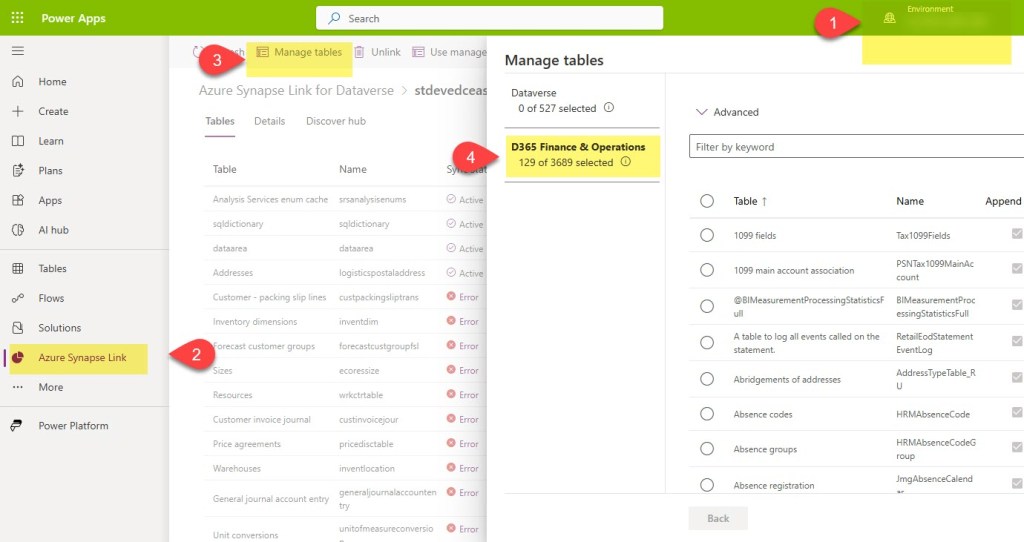
Then, deselect the offending table(s) and click the save button at the bottom. Once you see it has been removed from your main table list, go back in your data source (#4 in the image) and add it back. Click save. Again – removing the road blocker by itself may save you some headaches down the road. Once the road blocker has been resolved, it should show up as Active.
If you don’t know which one is the road blocker, then go ahead and remove them all. You will have to do that anyway, so maybe even just start off with that. Your choice.
| TIP: If you have hundreds or thousands of tables, you have my deepest sympathies. I’ve tried several methods of quick fixes, many that have brought my hopes up, but none that have succeeded to do anything except waste my time. The good news is you can add many tables at once separated by commas. I tend to add mine in batches of somewhere between 38-60. |
To remove them all, let’s go back into Manage Tables, and click the little circle that selects all your tables at once.
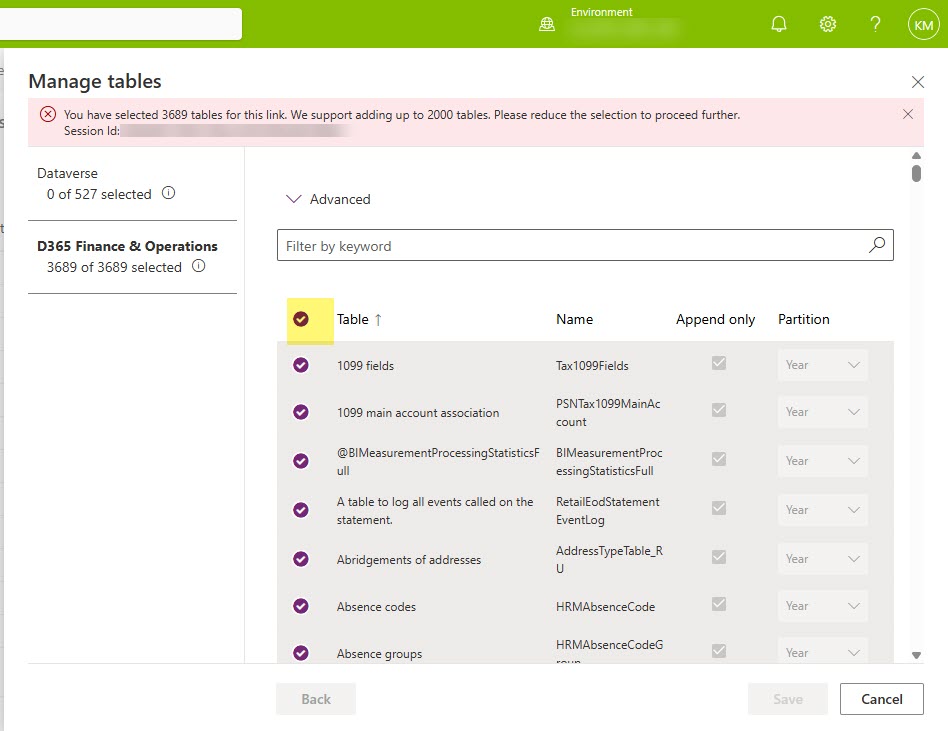
You will imediately notice an error message at the top that says something along the lines of “You’ve selected all the tables – WTAH. Fabric Link was made for you” or something like that. No worries that the save button is probably greyed out, you didn’t want to save any way. But you did want to be able to deselect all the tables right afterwards, and this was the easiest way to do it.
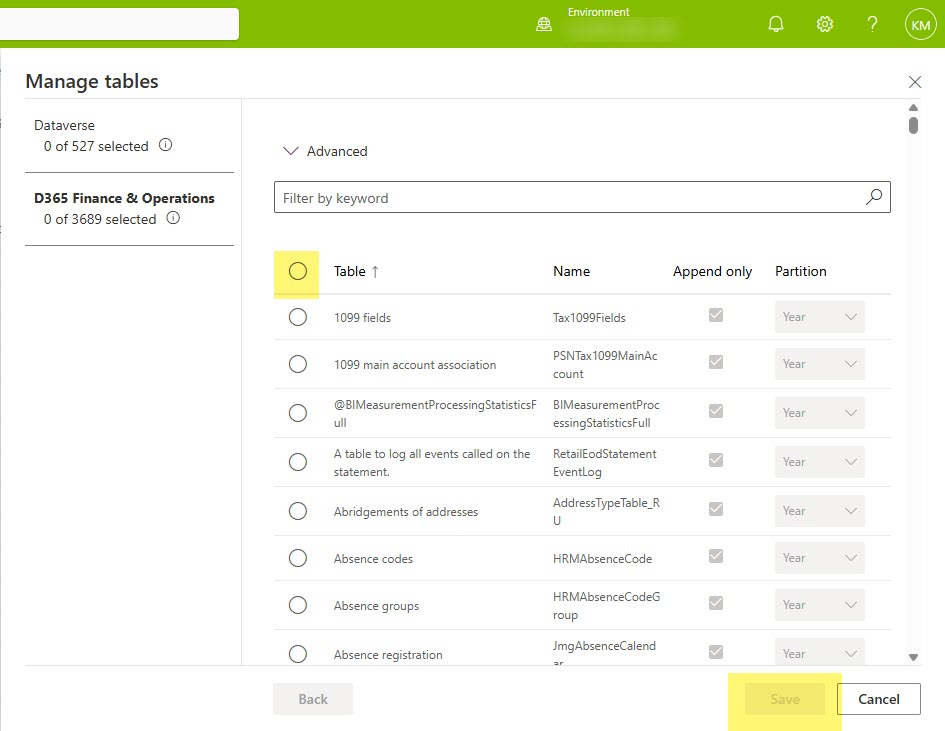
After deselecting all the tables, you may notice that you still don’t have the ability to click the Save button. This is probably Microsoft’s way of protecting you from really messing things up, so don’t fret. Instead, go to your list of tables that you (hopefully) have saved off somewhere, and add back 1. Preferably a tiny little fella. CustGroup is a fav of mine, but you do you and add 1 tiny table, and click save. And then wait…
The first table usually takes longer than you would think, so don’t let that scare you. Our custgroup table has about 200 rows and took about an hour with a small sized spark pool. I think it’s taken that long with 10 rows as well, it’s just the curse of being the first table through. You spark pool configuration probably makes the most difference. And if you’ve set that bad boy to small sized, then now may be the time to bump it up (scale) for it a bit. At least until all your tables have cleared.
When you tables first go to Active, you may get super excited and then see your dreams pass away with a sudden error about indexes. Don’t worry: that’s Synapse Link’s way of saying “hold up, I’m still doing stuff”. That error should resolve on it’s own. Probably in just a few minutes, but might be an hour or two. There’s too many factors that can change the timing of it, but I can safely say I see that error message all the times and it is always resolved.
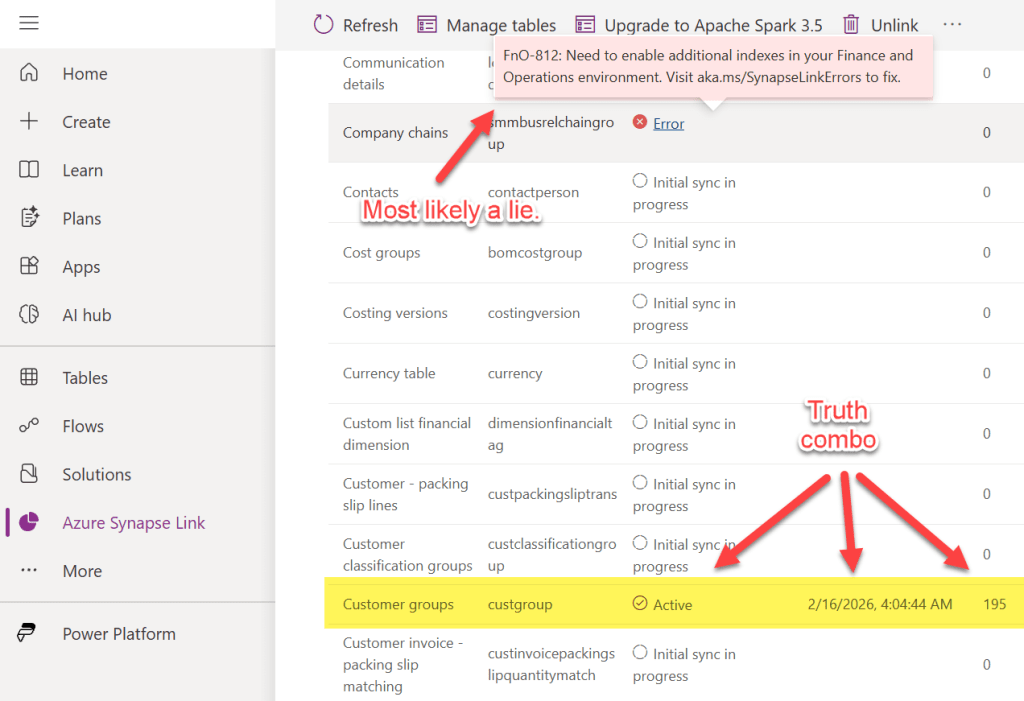
Once you get your first “Active” that has passed the index error message and now is giving you a timestamp and a row count, you know you are on your way. You’ll see each table go through the “Initial sync in progress, to Active, to Error (Fno 812), and then back to Active. That means you are almost done. Just like this post. That has been sitting in my draft box, thankfully, for probably 6-9 months. But that’s the good thing about technologies that are no longer the new and shiney toy – the process to fix the problem will probably stay the same. Until you are pushed to something else.
Note: Full loads tend to take a bit. Once you’ve gotten a table or 2 in the stable Active status, I’d let it run through the night. Usually by morning my tables are in place.
Are you still using Synapse Link like we are? I’m curious to hear if your reasons are the same as ours. Drop a message in the comments if you don’t mind sharing!
 Data Work Mom