Synapse Link Error: Can’t find the environment

On Today’s episode of “What’s the Problem in Synapse Now?” we take a look at Synapse Link for the Dataverse (shocker – I know.)

Let’s get right too it – we are talking about the error message: “You have not linked a Dynamics 365 Finance and Operations environment. Link an environment to see tables. See https://aka.ms/FnOTablesInSynapseLink“*. And oddly enough, our D365 F&O tab will have some variation of x of 0 selected.

Wait a minute – this was working perfectly fine a few days ago – ok – that may be – or maybe this is your first go at it, either way you are going to use the same solution.

So what do you do? Simple, close the managed tables tab. Next, and just as a precautionary, make sure you are in the correct environment, and that the environment is running. It’s not uncommon for lower environments to have a nightly shutoff switch. That’s probably not the cause, but it doesn’t hurt to check.
Now that you’ve checked the environment and have ruled that out, let’s discuss a common cause: your authentication has gotten boogered up. That’s the technical term for it: BOOGERED UP.

If using Managed Identity (which you should be), then the easiest fix is to click on that button at the top called Use Managed Identity.

That’s it. Soon you should see some movement for anything currently in place or if you were adding/changing some current tables, click on the Manage Tables button again to get back to where you were. Your error will hopefully be resolved. If you didn’t use managed identity with D365 F&O and Synapse Link, you may want to revaluate your life choices like I recently did. (JK – kinda of.) But if you didn’t, then you’ll have to make sure your storage account can talk to your Power Apps D365 F&O Synapse Link. I’ll save that rabbit hole for another day.

* Note, there is actually some good stuff in the link that the error message provides which at the time of this writing, resolves to: https://learn.microsoft.com/en-us/power-apps/maker/data-platform/azure-synapse-link-select-fno-data
It’s a lot of information so hopefully this tip will save you a bunch of time reading through the whole thing. But if you are starting a Synapse Link for Dataverse from scratch, or if this post doesn’t correct your issue, definitely go back to that link and step through each part. It won’t be your first or last visit…
Synapse Workspace: The Dreaded 403 error

This error has become the bane of my existence – with multiple configuration setups. Basically, anytime I dared to change the Synapse workspace to not allow all access in the Network settings, I was bound to run into it. Today’s tidbit only addresses ONE way that might solve this error, but it is so maddingly simple that I decided to throw it up on my blog. I’ll save the rant of all the different rabbit holes I’ve been down in the last month for the “BEST PRACTICE SAYS YOU HAVE TO DO THIS <oh except it’s not allowed in these cases and I’m going to bury that information on some small page.>” Hopefully I’ll post all the different ways to address this problem at some point.

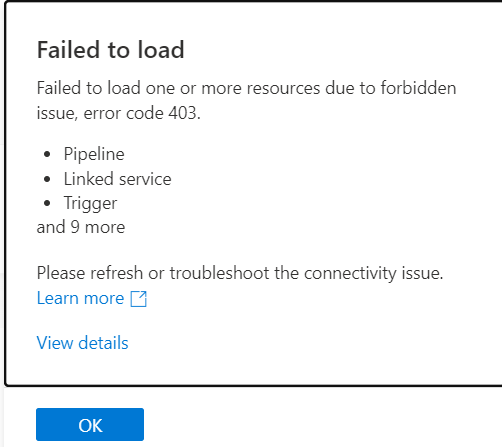
First let’s look at the error message that you see when you open up your Synapse workspace. “Failed to load. Failed to load one or more resources due to forbidden issue, error code 403.”

Failed to load 403 error.

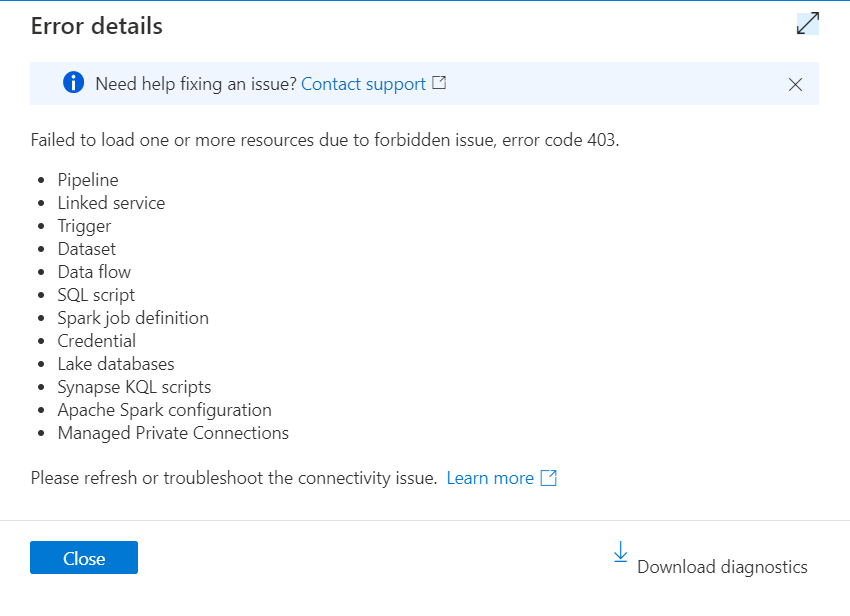
Hmmmmm, what is this “View details” you speak of?

Failed to load 403 error - more details.

Oh, ok. It’s just really telling me all the things that aren’t working. Awesome. And don’t let that “download diagnostics” button fool you. It’s not going to tell you anything helpful. (I know, shocking.)

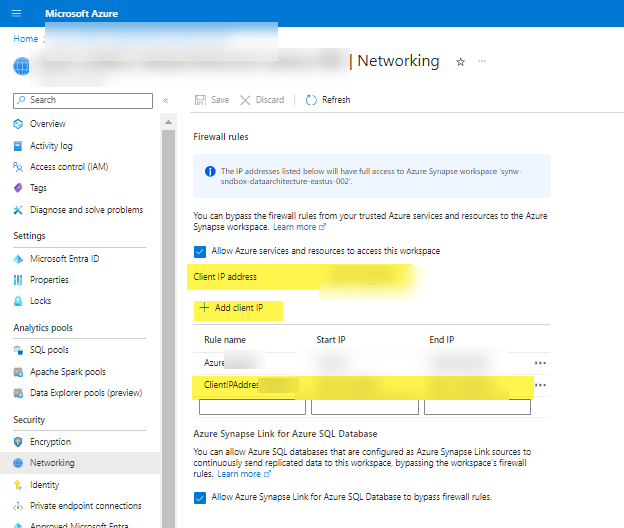
So what’s the 2 second fix you can check before getting lost down your own rabbit hole? A little thing in the Azure portal, under your Synapse workspace in the Network settings. Drum role……..make sure you have your own IP address (ahem, “Client IP address”) added as a rule with whatever other network rules you’ve got going on. ARE YOU FREAKING KIDDING ME?

Synapse Netowrking firewall rules image with highlighted areas showing to add your IP address.

If you are thinking “yea, duh, there is a little button that says ‘Add client IP'” then ShutIT. They put that image slam in the middle of one of the Microsoft Learn pages without context in the middle of something else completely, so by the time you (ok me) finish the other thing that the article was about, I’ve completely forgotten about this rando item. And apparently I’m not the only one because I’ve screen shared with a ton of super smart people (including MS peeps) and no one even noticed my IP wasn’t added.

For the record, my new mantra is “they created Fabric because they realized they had to simplify Synapse configurations. Microsoft realized too many people were getting pissed.”

UPDATE: If using PBI as a developer using desktop, you may have to add that person’s IP address to the firewall rules as well. Otherwise they may have issues refreshing tables.