Recently we started a new pilot project for Microsoft Fabric using D365 F&O (ERP) as the data source utilizing Synapse Link to get it out of Dataverse. If you are familiar with this architecture pattern, you know it can be pretty painful at times. Alas, Fabric Link will not work for us at this time, so I’ll just leave it at that for now. Just know that this problem is specific to a Synapse Link setup.
Previously, Spark 3.4 was not available to use for Synapse Link. That has creating a bit of a panic from people using D365 F&O with Synapse Link, because Spark 3.3 is going out of support on March 31, 2025. I don’t know what the cost of D365 F&O is for most, but I’m pretty sure it’s like a gazillion dollars. Recently I saw people were starting to use Spark 3.4 with D365 F&O and Synapse Link, but they were also having trouble.
Getting around some other issues we’ve been encountering, we were finally able to set up our Synapse Link. The setup screen confirmed we needed to use Spark 3.3.
UPDATE: The UI below now properly says Spark 3.4, but I’m leaving this here in case it happens with another version in the future.
Here’s a close up in case you can’t see it:
The problem was, after I filled out all the other required information, there was nothing in the drop down box for spark. I confirmed on the Azure side that everything was set up correctly and that Synapse and the storage account were seeing each other, but nothing in the drop box.
Now at this point I could drag this post out and tell you all the things I did to try and fix it, but I’m getting a little annoyed at unnecessarily long posts lately, so I just skip to the solution: Spark 3.4 is actually required now.
Once we recreated a spark 3.4 pool, all of a sudden it appeared in the drop down box and we could move to the next screen. Unfortunately right after we got that fixed we ran into a Spark 3.4 bug, but that was fixed and pushed out in about 2 days. Finally we can move on to the Fabric portion of our project.
Note: we did let Microsoft know about erroneous message for 3.3, but as of yesterday it was still showing up when you go to set up a new Synapse Link. Showing up correctly when I checked again on Feb 6th.
If you’ve bought a P1 reserved capacity, you may have been told “No worries – it’s the same as an F64!” (Or really, this is probably the case for any P to F sku conversion.) Just as you suspected – that’s not entirely accurate. And if you are trying to create Fabric shortcuts on a storage account that uses a virtual network or IP filtering – it’s not going to work.
The problem seems to lie in the fact that P1 is not really an Azure resource in the same way an F sku is. So when you go to create your shortcut following all the recommend settings (more on that in a minute), you’ll wind up with some random authentication message like the one below “Unable to load. Error 403 – This request is not authorized to perform this operation”:
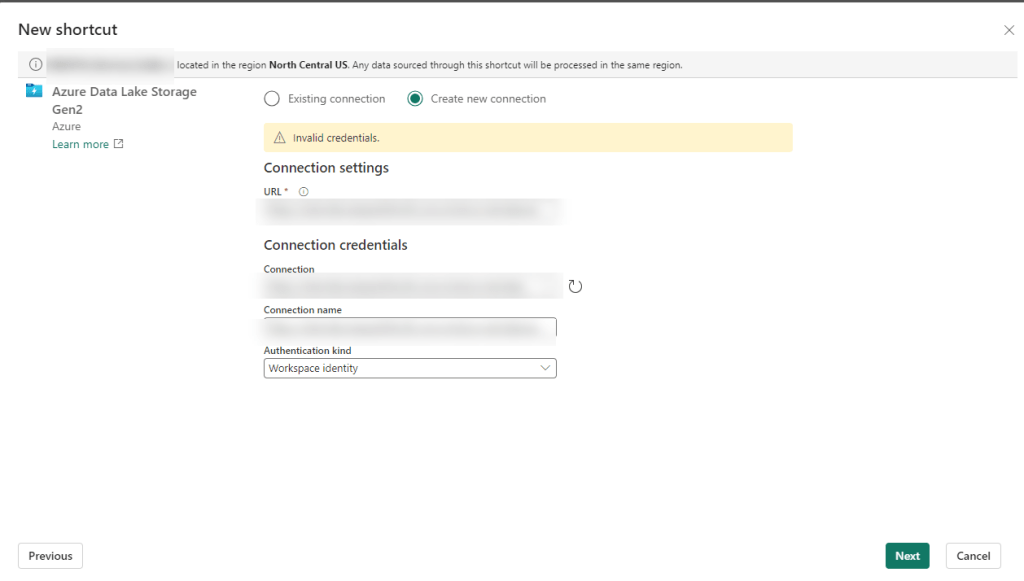
You may not even get that far and just have some highly specific error message like “Invalid Credentials”:
Giving the benefit of the doubt – you may be thinking there was user error. There are a gazillion settings, maybe we missed one. Maybe, something has been updated in the last month, week, minute… Fair enough – let’s go and check all of those.
Building Fabric shortcuts, means you are building OneLake shortcuts. So naturally I first found the Microsoft Fabric Update Blog announcement that pertained to this problem: Introducing Trusted Workspace Access for OneLake Shortcuts. That walks through this EXACT functionality, so I recreated everything from scratch and voila! Except no “voila” and still no shortcuts.
Okay, well – no worries, there’s another link at the bottom of the update blog: Trusted workspace access. Surely with this official and up-to-date documentation, we can get the shortcuts up and running.
Immediately we have a pause moment with the wording “can only be used in F SKU capacities”. It mentions it’s not supported in trial capacities (and I can confirm this is true), but we were told that a P1 was functionally the same as an F64 so we should be good right?
Further down the article, there is a mention of creating a resource instance rule. If this is your first time setting all of this up, you don’t even need this option, but it may be useful if you don’t want to add the Exception “Allow Azure services on the trusted services list to access this storage account.” to the networking section of your storage account. But this certainly won’t fix your current problem. Still, good to go through all this documentation and make sure you have everything set up properly.
One additional callout I’d like to make is the Restrictions and Considerations part of the documentation. It mentions: Only organizational account or service principal must be used for authentication to storage accounts for trusted workspace access. Lots of Microsoft support people pointed to this as our problem, and I had to show them not only was it not our problem, but it wasn’t even correct. It’s actually a fairly confusing statement because the a big part of this article is setting up the workspace identity, and then that line reads like you can’t use workspace identity to authenticate. I’m happy to report using the workspace identity worked fine for us once we got our “fix” in (I use that term loosely) and without the fix we still had a problem if we tried to use the other options available for authentication (including organizational account).
After some more digging, on the Microsoft Fabric features page, we see that P SKUs are actually not the same as F SKU in some really important ways. And using shortcuts to an Azure Storage Account that are set using anything but to Public network access: Enabled from all networks (which BTW – is against Microsoft best practice recommendations) is not going to work on a P1.
The Solution
You are not going to like this. You have 2 options. The first one is the easiest, but in my experience very few enterprise companies will want to do this since it goes against Microsoft’s own best practice recommendation: Change your storage account Network setting to: Public network access enabled from all networks.
Don’t like that option? You’re probably not going to like #2 either. Particularly if you have a long time left on your P SKU capacity. The solution is to spin up a F SKU. In addition to your P SKU.And as of the writing of this article, you can not convert a P SKU to an F SKU, meaning if you got that reserved capacity earlier this year – you are out of luck.
In our case, we have a deadline for moving our on-prem ERP solution to D365 F&O (F&SCM) and that deadline includes moving our data warehouse in parallel. Very small window for moving everything and making sure the business can still run on a new ERP system with a completely new data warehouse infrastructure.
We’d have to spend a minimum of double what we are paying now, 10K a month instead of 5k a month, and that’s only if we bought a reserved F64 capacity. If we wanted to do a pay-as-go, that 8K+ more a month, which we’d probably need to do until we figure out if we should do 1 capacity, or multiple (potentially smaller) capacities to separate prod/non-prod/reporting environments. We are now talking in the range of over 40K additional at a minimum just to use the shortcut feature, not to mention we currently only use a tiny fraction of our P1 capacity. I can’t even imagine for companies that purchased a 3-year P capacity recently. (According to MS, you could have bought that up until June 30 of this year.)
Ultimately many companies and Data Engineers in the same position will need to decide if they do their development in Fabric, Synapse, or something else all together. Or maybe, just maybe, Microsoft can figure out how to convert that P1 to an F64. Like STAT.
On Today’s episode of “What’s the Problem in Synapse Now?” we take a look at Synapse Link for the Dataverse (shocker – I know.)
Let’s get right too it – we are talking about the error message: “You have not linked a Dynamics 365 Finance and Operations environment. Link an environment to see tables. See https://aka.ms/FnOTablesInSynapseLink“*. And oddly enough, our D365 F&O tab will have some variation of x of 0 selected.
Wait a minute – this was working perfectly fine a few days ago – ok – that may be – or maybe this is your first go at it, either way you are going to use the same solution.
So what do you do? Simple, close the managed tables tab. Next, and just as a precautionary, make sure you are in the correct environment, and that the environment is running. It’s not uncommon for lower environments to have a nightly shutoff switch. That’s probably not the cause, but it doesn’t hurt to check.
Now that you’ve checked the environment and have ruled that out, let’s discuss a common cause: your authentication has gotten boogered up. That’s the technical term for it: BOOGERED UP.
If using Managed Identity (which you should be), then the easiest fix is to click on that button at the top called Use Managed Identity.
That’s it. Soon you should see some movement for anything currently in place or if you were adding/changing some current tables, click on the Manage Tables button again to get back to where you were. Your error will hopefully be resolved. If you didn’t use managed identity with D365 F&O and Synapse Link, you may want to revaluate your life choices like I recently did. (JK – kinda of.) But if you didn’t, then you’ll have to make sure your storage account can talk to your Power Apps D365 F&O Synapse Link. I’ll save that rabbit hole for another day.
* Note, there is actually some good stuff in the link that the error message provides which at the time of this writing, resolves to: https://learn.microsoft.com/en-us/power-apps/maker/data-platform/azure-synapse-link-select-fno-data It’s a lot of information so hopefully this tip will save you a bunch of time reading through the whole thing. But if you are starting a Synapse Link for Dataverse from scratch, or if this post doesn’t correct your issue, definitely go back to that link and step through each part. It won’t be your first or last visit…






 Data Work Mom