
You’ve assigned your Fabric Administrators and you’ve sent them off to the races to go see and do all the things. Except they can’t see and do all the things. OR CAN THEY? <cue ominous music>

At first glance, Fabric Administrator #2 can’t see any of the workspaces PBI Administrator 1 created; some of them years ago. Let’s go ahead and fix that first over here.* Once you’ve gotten that all straightened out and they can see all the workspaces, you think you are in the clear for deployment pipelines? Nope, same issue: PBI Administrator #1 can see all of the deployment pipelines and newly minted Fabric Administrator #2 can see none. Waaa-waaaa (sad trombone).
*(If you only need the user / user group to see the workspaces relative to the pipeline, then read on for a helpful hint that performs the double duty of adding the security to workspaces and deployment pipelines at the same time).
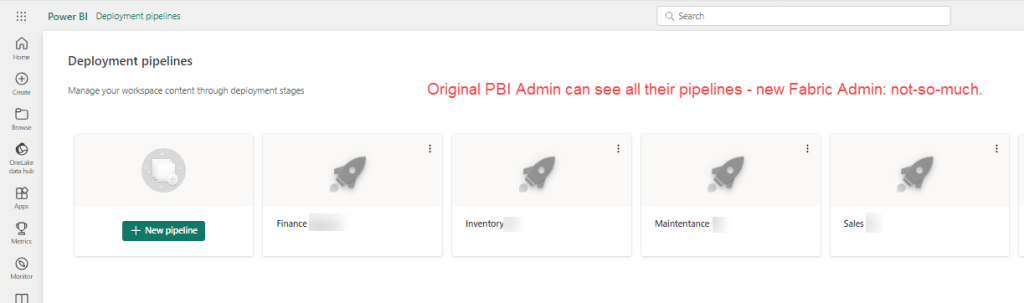
To be fair, I’m fairly certain this would be the same case for 2 PBI Administrators, but since the Fabric genie has been let out of the bottle, I can’t say for sure.
What’s an admin to do??? I mean seriously, what does Admin even mean anymore?!?
Well if we are perfectly honest, there is a reason we’ve been telling you to set up User Groups. Because if the admin that had set up the pipeline to begin with had given access to the deployment pipeline to a admin user group to begin with, then we wouldn’t be here.

(Oh yea, well if you want to be that way then I say security should really be a part of the creating a pipeline option.) Look, do you want to play the blame game or do you want to find a solution? That’s what I thought.
To fix, go into the deployment pipeline and click on the Manage Access link.
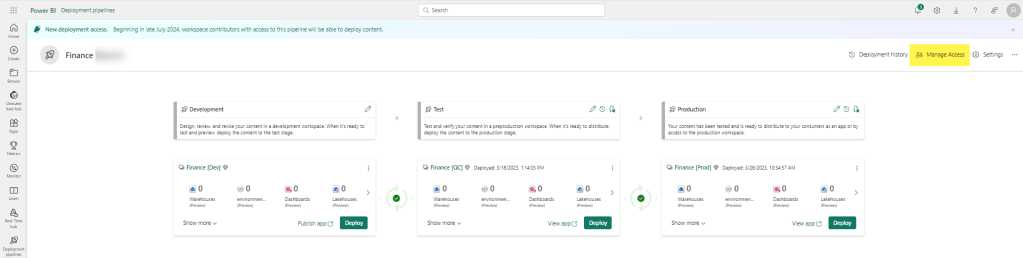
Then add your USER GROUP to the Access list Admin rights.

If you haven’t already added the group to the workspace – then here is your chance to do it all together. Just switch the toggle button to Add or update workspace permissions to ON.
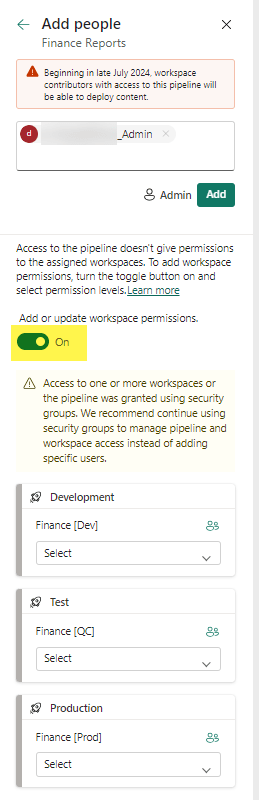
You can then set a more granular access to each workspace for the user group (or user, sigh) in question. Access options include Admin, Contributor, Member, and Viewer (though we may see more down the road).
That’s it. Throw a message in the comments if you’ve encounter any similar hiccups.
 Data Work Mom