
Fabric Deployment Pipeline: Can’t see anything to deploy

Microsoft Fabric deployment pipeline screenshot.

Note: At the time of this writing, this also applies to Power BI Service.

Ah, you’ve setup a deployment pipeline and let your people know it’s ready for them to do the thing. Everything looks fine on your end, so you shoot off a message to the group and go about your busy day. (Nevermind your Test environment was set up 4 months ago, Production 3 days ago, and Development was replaced 2 months ago with a new Development environment because your region changed.) You’ve added all the permission groups to each environment and added your “contributors” as Admin to the deployment pipeline (no comment), so everything should be grand.

Except… your consultant just pinged you that it’s not. You hop on a call and confirm that even though she sees all of her work in the development workspace, and she is actively developing there, it shows up as nothing in the deployment pipeline. She checks access to the Test & Production Environment. Yep, can enter the workspaces even though nothing is there. Those workspaces are expected to be empty because artifacts haven’t been promoted yet. What gives?

You check the deployment pipeline permissions again.

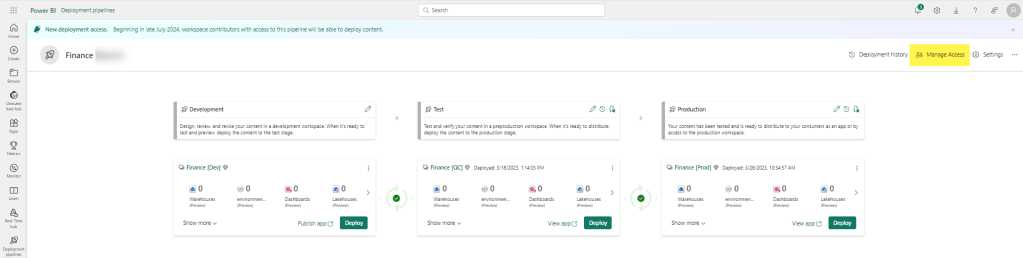
Fabric deployment pipeline screenshjot with "Manage Access" highlighted.

Yep. The user is in a group that is an Admin under Manage Access in the deployment pipeline.. (Pro-tip: if using groups, verify the person is in the group.) What else can you check?

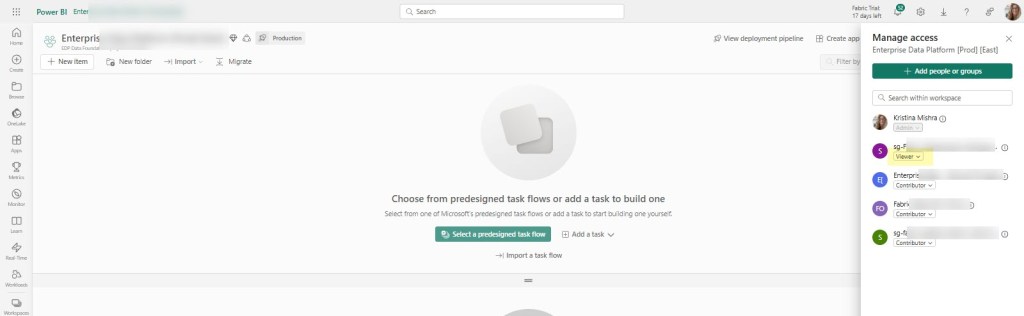
In this instance, the problem was in the workspace permission.

Microsoft Fabric workspace manage access screenshot.

The user was in a group in the workspace that only had Viewer permissions. This made sense when I created the workspace, because the user wasn’t going to be creating / updating things directly in the workspace (only pipelines would be doing that), but it was forgotten that the user would need the additional permissions once she was given the task to add parameters and such to the deployment pipeline. As soon as the workspace access was updated to Contributor, she was able to see the artifacts in the pipeline.

Feel free to add other areas you would have checked in the comment section.

I got 99 problems and Fabric Shortcuts on a P1 is one of them

If you’ve bought a P1 reserved capacity, you may have been told “No worries – it’s the same as an F64!” (Or really, this is probably the case for any P to F sku conversion.) Just as you suspected – that’s not entirely accurate. And if you are trying to create Fabric shortcuts on a storage account that uses a virtual network or IP filtering – it’s not going to work.

The problem seems to lie in the fact that P1 is not really an Azure resource in the same way an F sku is. So when you go to create your shortcut following all the recommend settings (more on that in a minute), you’ll wind up with some random authentication message like the one below “Unable to load. Error 403 – This request is not authorized to perform this operation”:

Screen shot with error message: "Unable to load. Error 403 - This request is not authorized to perform this operation"

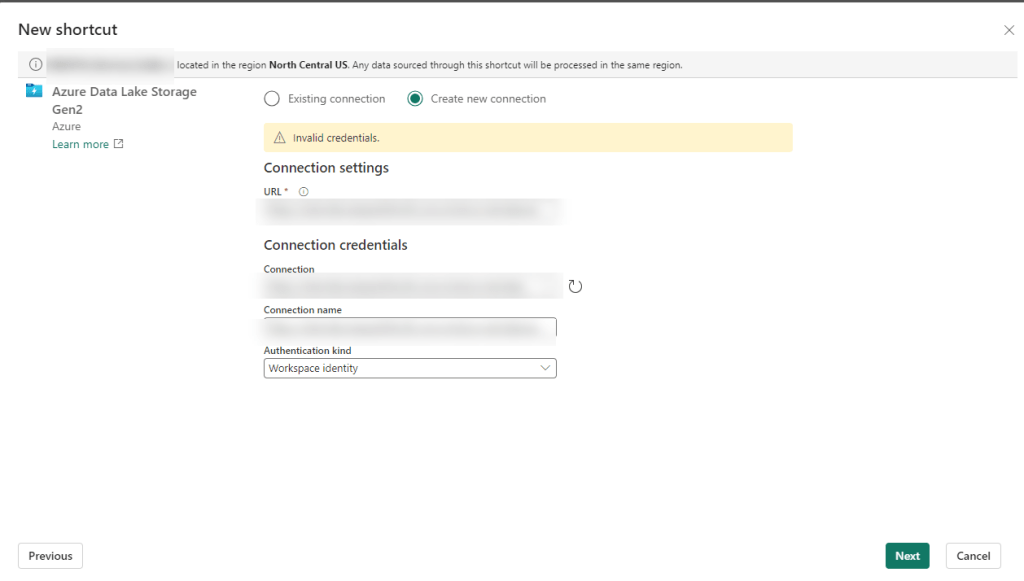
You may not even get that far and just have some highly specific error message like “Invalid Credentials”:

Screen shot with "Invalid Credentials" error message.

Giving the benefit of the doubt – you may be thinking there was user error. There are a gazillion settings, maybe we missed one. Maybe, something has been updated in the last month, week, minute… Fair enough – let’s go and check all of those.

Building Fabric shortcuts, means you are building OneLake shortcuts. So naturally I first found the Microsoft Fabric Update Blog announcement that pertained to this problem: Introducing Trusted Workspace Access for OneLake Shortcuts. That walks through this EXACT functionality, so I recreated everything from scratch and voila! Except no “voila” and still no shortcuts.

Okay, well – no worries, there’s another link at the bottom of the update blog: Trusted workspace access. Surely with this official and up-to-date documentation, we can get the shortcuts up and running.

Immediately we have a pause moment with the wording “can only be used in F SKU capacities”. It mentions it’s not supported in trial capacities (and I can confirm this is true), but we were told that a P1 was functionally the same as an F64 so we should be good right?

Further down the article, there is a mention of creating a resource instance rule. If this is your first time setting all of this up, you don’t even need this option, but it may be useful if you don’t want to add the Exception “Allow Azure services on the trusted services list to access this storage account.” to the networking section of your storage account. But this certainly won’t fix your current problem. Still, good to go through all this documentation and make sure you have everything set up properly.

One additional callout I’d like to make is the Restrictions and Considerations part of the documentation. It mentions: Only organizational account or service principal must be used for authentication to storage accounts for trusted workspace access. Lots of Microsoft support people pointed to this as our problem, and I had to show them not only was it not our problem, but it wasn’t even correct. It’s actually a fairly confusing statement because the a big part of this article is setting up the workspace identity, and then that line reads like you can’t use workspace identity to authenticate. I’m happy to report using the workspace identity worked fine for us once we got our “fix” in (I use that term loosely) and without the fix we still had a problem if we tried to use the other options available for authentication (including organizational account).

After some more digging, on the Microsoft Fabric features page, we see that P SKUs are actually not the same as F SKU in some really important ways. And using shortcuts to an Azure Storage Account that are set using anything but to Public network access: Enabled from all networks (which BTW – is against Microsoft best practice recommendations) is not going to work on a P1.

Fabric F SKU versus PBI P SKU functionality image.

The Solution

You are not going to like this. You have 2 options. The first one is the easiest, but in my experience very few enterprise companies will want to do this since it goes against Microsoft’s own best practice recommendation: Change your storage account Network setting to: Public network access enabled from all networks.

Don’t like that option? You’re probably not going to like #2 either. Particularly if you have a long time left on your P SKU capacity. The solution is to spin up a F SKU. In addition to your P SKU. And as of the writing of this article, you can not convert a P SKU to an F SKU, meaning if you got that reserved capacity earlier this year – you are out of luck.

In our case, we have a deadline for moving our on-prem ERP solution to D365 F&O (F&SCM) and that deadline includes moving our data warehouse in parallel. Very small window for moving everything and making sure the business can still run on a new ERP system with a completely new data warehouse infrastructure.

We’d have to spend a minimum of double what we are paying now, 10K a month instead of 5k a month, and that’s only if we bought a reserved F64 capacity. If we wanted to do a pay-as-go, that 8K+ more a month, which we’d probably need to do until we figure out if we should do 1 capacity, or multiple (potentially smaller) capacities to separate prod/non-prod/reporting environments. We are now talking in the range of over 40K additional at a minimum just to use the shortcut feature, not to mention we currently only use a tiny fraction of our P1 capacity. I can’t even imagine for companies that purchased a 3-year P capacity recently. (According to MS, you could have bought that up until June 30 of this year.)

Ultimately many companies and Data Engineers in the same position will need to decide if they do their development in Fabric, Synapse, or something else all together. Or maybe, just maybe, Microsoft can figure out how to convert that P1 to an F64. Like STAT.

Why Can’t My Fabric Admin see a Deployment Pipeline?

You’ve assigned your Fabric Administrators and you’ve sent them off to the races to go see and do all the things. Except they can’t see and do all the things. OR CAN THEY? <cue ominous music>

My dog on the beach, crazy-eyed with anticipation, while a hand is on her.
Mango, crazy-eyed with anticipation about a new adventure.

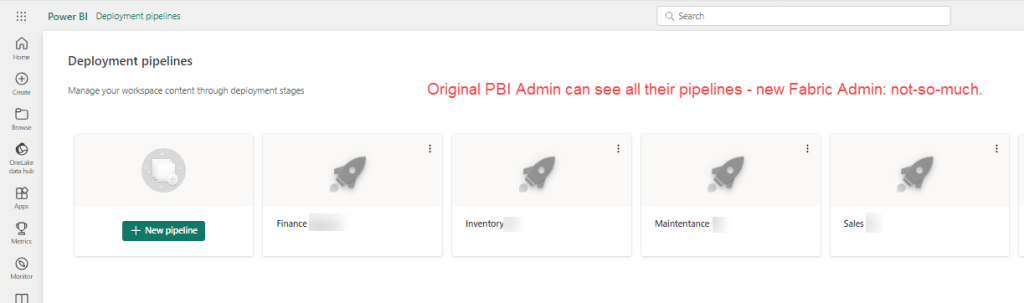
At first glance, Fabric Administrator #2 can’t see any of the workspaces PBI Administrator 1 created; some of them years ago. Let’s go ahead and fix that first over here.* Once you’ve gotten that all straightened out and they can see all the workspaces, you think you are in the clear for deployment pipelines? Nope, same issue: PBI Administrator #1 can see all of the deployment pipelines and newly minted Fabric Administrator #2 can see none. Waaa-waaaa (sad trombone).

*(If you only need the user / user group to see the workspaces relative to the pipeline, then read on for a helpful hint that performs the double duty of adding the security to workspaces and deployment pipelines at the same time).

Screen shot of PBI / Fabric deployment pipelines with the text "Original PBI Admin can see all their pipelines - new Fabric Admin: no-so-much."

To be fair, I’m fairly certain this would be the same case for 2 PBI Administrators, but since the Fabric genie has been let out of the bottle, I can’t say for sure.

What’s an admin to do??? I mean seriously, what does Admin even mean anymore?!?

Well if we are perfectly honest, there is a reason we’ve been telling you to set up User Groups. Because if the admin that had set up the pipeline to begin with had given access to the deployment pipeline to a admin user group to begin with, then we wouldn’t be here.

Generated pic of man kicking something on the ground.
Photo by cottonbro studio on Pexels.com

(Oh yea, well if you want to be that way then I say security should really be a part of the creating a pipeline option.) Look, do you want to play the blame game or do you want to find a solution? That’s what I thought.

To fix, go into the deployment pipeline and click on the Manage Access link.

Screenshot of a deployment pipeline with Manage Access link highlighted.

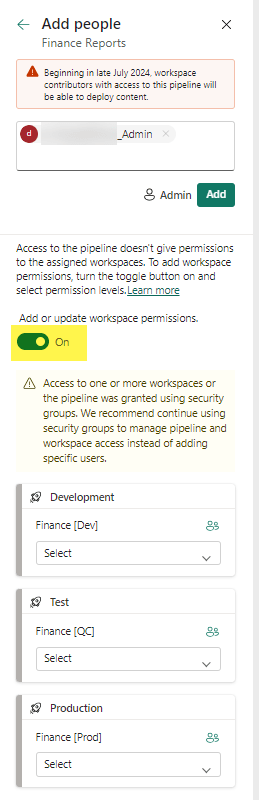
Then add your USER GROUP to the Access list Admin rights.

Screen shot to add people or groups to a pipeline.

If you haven’t already added the group to the workspace – then here is your chance to do it all together. Just switch the toggle button to Add or update workspace permissions to ON.

You can then set a more granular access to each workspace for the user group (or user, sigh) in question. Access options include Admin, Contributor, Member, and Viewer (though we may see more down the road).

That’s it. Throw a message in the comments if you’ve encounter any similar hiccups.

User Can’t Create a Workspace in Fabric

Recently my boss reached out to me with an interesting question: How can she create a workspace in Fabric’s Data Engineering section? When she clicked on create a workspace, and then the Advance tab, her License mode options were restricted to Pro or Premium per-user. She didn’t have any of the Fabric options.

Image showing Fabric workspace license options.

Our company is still under a Premium Capacity subscription which we will roll into a Fabric one once it completes, but according to Microsoft, our P1 Premium Capacity license is the same as a F64 license. In the Admin portal under Tenant setting, we have Microsoft Fabric options and even have the option Users can create Fabric items enabled. So what gives?

It turns out that in certain scenarios, you will need to also set this in the Capacity setting. In our case, we are keeping things pretty tight until we have our standards set up and will role things out to small groups. But to allow small groups to have access to this, you can add them to the contributor role under capacity setting. (I mean you could add people one by one, or enable for the whole org – you do you – but I’d advise against it. It’s hard to put the genie back into the bottle.) You could also add them to the admin role in the capacity setting, but again – I’d advise against it. These settings are ever changing and it’s hard enough keeping track of everything everywhere.

Admin portal capacity settings contributor permissions.

Yes you can add AD/Entra groups instead of users, and that’s really the route you want to go if you are dealing with anything large scale. I’m reminded of the Wizard of OZ when he says “ignore the man behand the curtain!” as my name is clearly listed in the image instead of a group, but that’s because I wanted to show a real world example.

Once you have added a user/group, click Apply. It took about 5-15 seconds for it to work it’s way through our system. Once that was complete, my boss had the Premium Capacity license available (which would allow her to create non-PBI Fabric items.)

What are some non-intuitive things you’ve found getting your company up and running on Fabric?